
View Categories

How to clear the cache on your Android phone or tablet (and why you should) This document explains how to clear the cache and cookies in Google Chrome on Android phones.

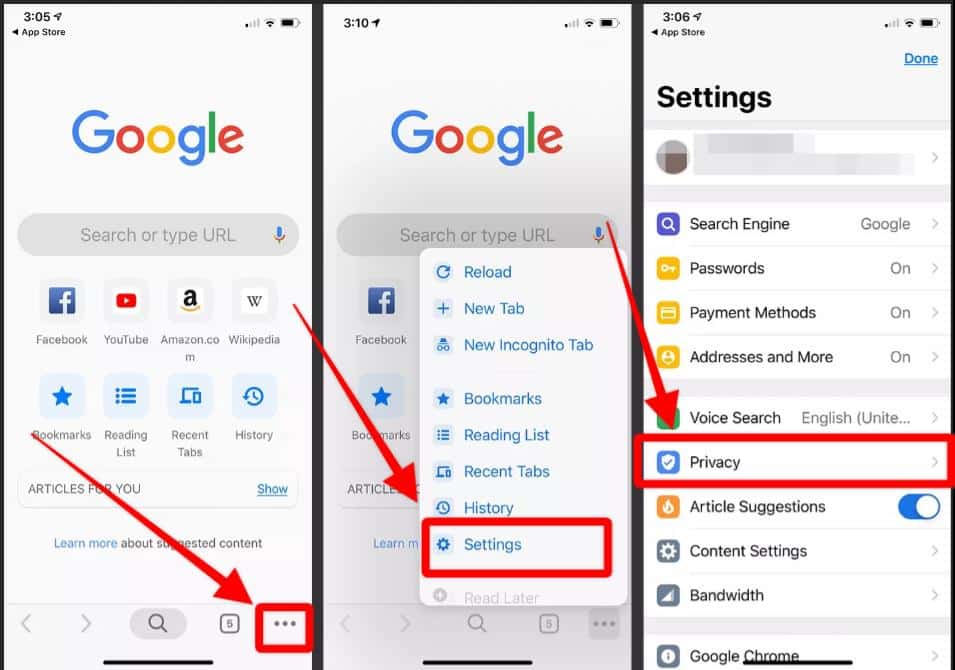
  1. Launch your Browser, usually Chrome.
  2. Open the Menu in Chrome.
    Click on the 3 dots in the lower right corner (see screenshot below).
  3. Select Settings
  4. Select Privacy.
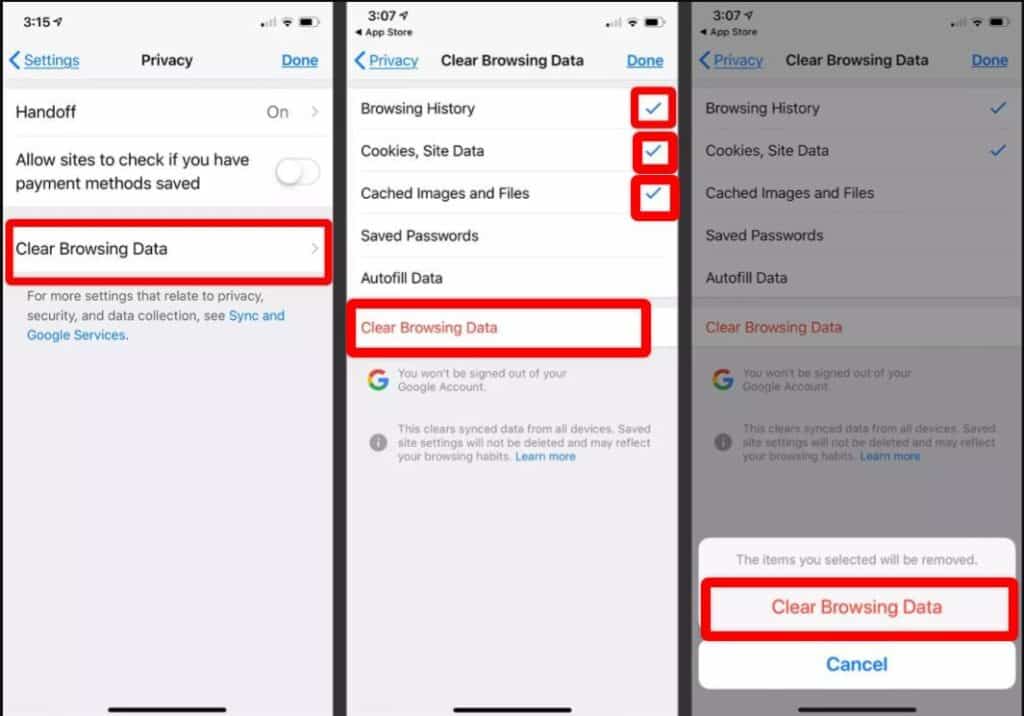
  5. Select Clear browsing data.
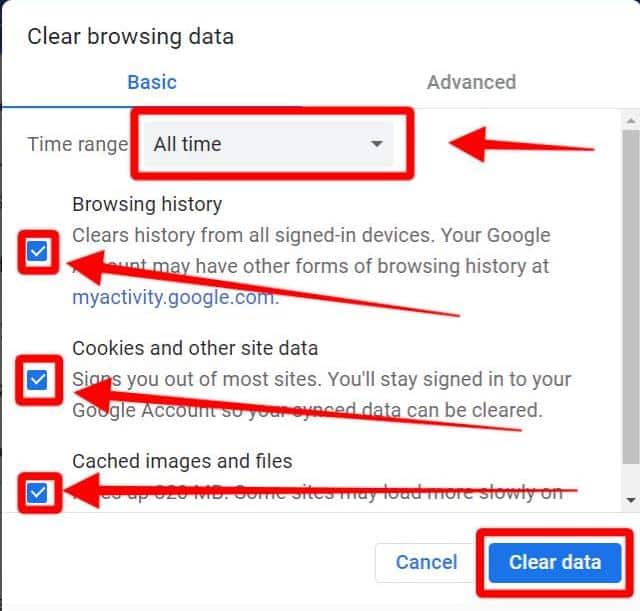
  6. Be sure to select All Time in the Time Range drop-down box.
    Do not clear your passwords, as you’ll want to keep those.
  7. Click on Clear data.

    • After you clear your Internet cache, close your web browser.
        • Click the Sign In button at the top of the page.
        • Enter your email address and password. If you used the Google Login with your Gmail, use that instead.
        • After logging in, click on the course name in dark red.
        • On the next page, click on the Enter button.
        • Select the Last Visited Page button.

Sign In or Login to servingalcohol.com


Cookie preferences

We use cookies to improve your experience. Choose which cookies you'd like to allow.

Essential cookies

Required for the website to function properly. Always active.

Analytics cookies

Help us understand how visitors interact with our site (Google Analytics).

Marketing cookies

Used to show relevant ads based on your browsing (Google Ads).

You can update your preferences at any time. See our Privacy Policy for more details.