---
title: "Clear Cache in Firefox on Mac"
description: "This document explains how to clear Firefox web browser cache on Mac computers. 1. In the menu bar, click on **History** > **Clear Recent History.**.[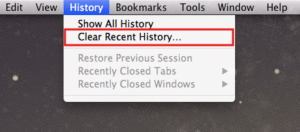](https://servingalcohol.com/wp-content/uploads/2021/07/1_clear_recent1.png) 2. In the window that appears, click on the dropdown menu to the right of the **Time range…"
url: "https://servingalcohol.com/kb/cache/clear-firefox-mac/"
updated: "2025-04-02"
category: Clear Browsing Data
---
# Clear Cache in Firefox on Mac
This document explains how to clear Firefox web browser cache on Mac computers.
1. In the menu bar, click on **History** > **Clear Recent History.**.[](https://servingalcohol.com/wp-content/uploads/2021/07/1_clear_recent1.png)
2. In the window that appears, click on the dropdown menu to the right of the **Time range to clear** and select **Everything**. Expand the **Details** section and check **Browsing & Download History**, **Cookies,** and **Cache if necessary**.[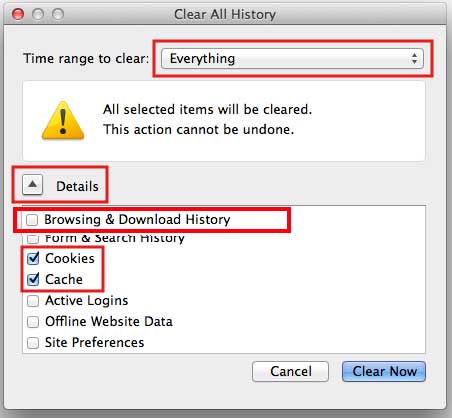](https://servingalcohol.com/wp-content/uploads/2021/07/firefox-mac-cache.jpg)
3. Click **Clear Now**. Depending on how much data needs to be deleted, the progress wheel may spin for a few minutes. Once it stops, the process is complete.
- - - After you clear your Internet cache, close your web browser.
- Next, open your **[Firefox](https://www.mozilla.org/en-US/firefox/new/)**web browser again.
- Log in to the course from our homepage at **[servingalcohol.com](https://servingalcohol.com/)**.
- Click the **[Sign In](https://servingalcohol.com/ecomm/#/login)** button at the top of the page.
- Enter your email address and password. If you used the Google Login with your Gmail, use that instead.
- After logging in, click on the name of the course in red.
- On the next page, click on the Enter button.
- Select the **Last Visited Page** button.
[](https://servingalcohol.com/ecomm/#/login)