---
title: "Clear Cache in MS Edge on Windows"
description: "This document explains how to clear the Microsoft Edge web browser cache on a Windows computer. **NOTE:** To quickly get to the setting, type **edge://settings/clearBrowserData**in the browser bar (where you usually enter a URL), then go to Step 8: …"
url: "https://servingalcohol.com/kb/cache/clear-edge-windows/"
updated: "2025-04-02"
category: Clear Browsing Data
---
# Clear Cache in MS Edge on Windows
This document explains how to clear the Microsoft Edge web browser cache on a Windows computer.
**NOTE:** To quickly get to the setting, type **edge://settings/clearBrowserData**in the browser bar (where you usually enter a URL), then go to Step 8:
1. 1. Select the **Hub icon** (three horizontal lines at top bar in front of a star)
2. Select ****Settings**** 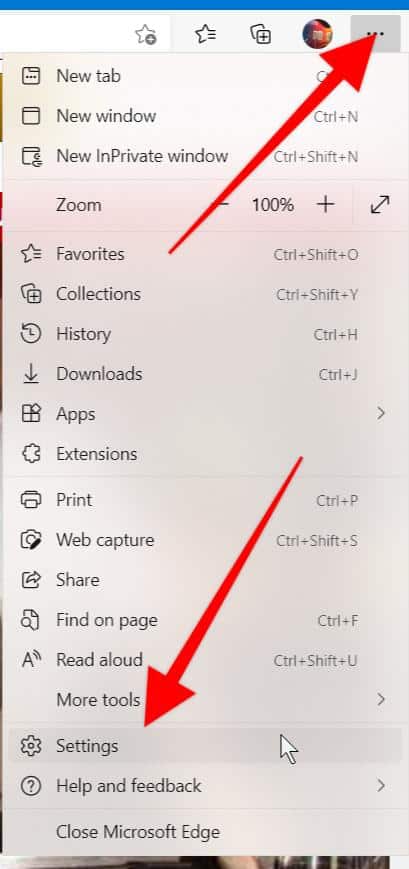
3. In Settings, select **Privacy, search, and services**.
4. Scroll down the page.
5. Under **Clear browsing data** section, click on **Choose what to clear.**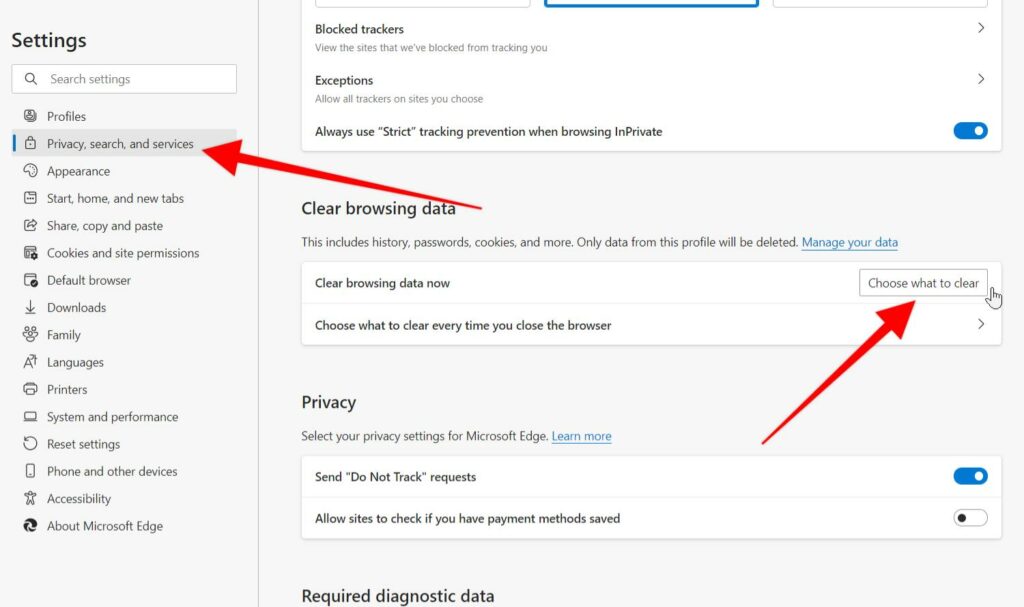
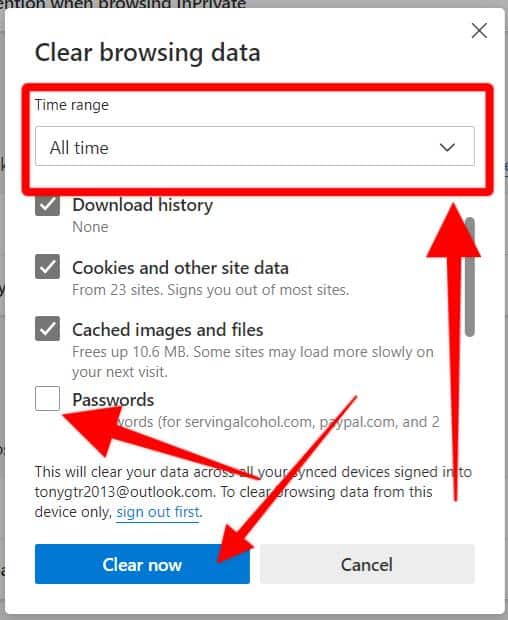
6. Under Time Range, select **All Time**.
7. Next, click on **Cookies and other site data**and **Cached images and files**.
*** Do not select Passwords. ***
8. Last, click **Clear now** button
- - After you clear your Edge browser cache, close your web browser.
- Next, open your **[Edge](https://www.microsoft.com/en-us/edge)**web browser again.
- Log in to the course from our homepage at **[servingalcohol.com](https://servingalcohol.com/)**
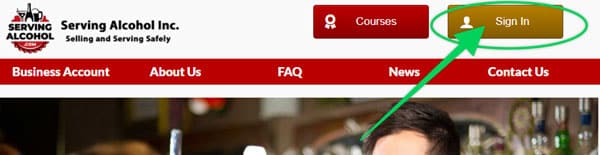
- Click the **[Sign In](https://servingalcohol.com/ecomm/#/login)** button at the top of the page.
- Enter your email address and password.
(If you have a Gmail address, click the Google Login button and enter your Gmail password).
- After logging in, click on the course name in **dark red**.
- On the next page, click on the **Enter** button.
- Select the **Last Visited Page** button to return to where you last left the course.
[](https://servingalcohol.com/ecomm/#/login)