---
title: "Clear Cache in Chrome on macOS"
description: "This document explains clearing the cache and cookies in [Google Chrome](https://www.google.com/chrome/) on [Mac OSX](https://support.apple.com/en-us/HT201260). 1. 1. Click on **Chrome** > **Clear Browsing Data...**.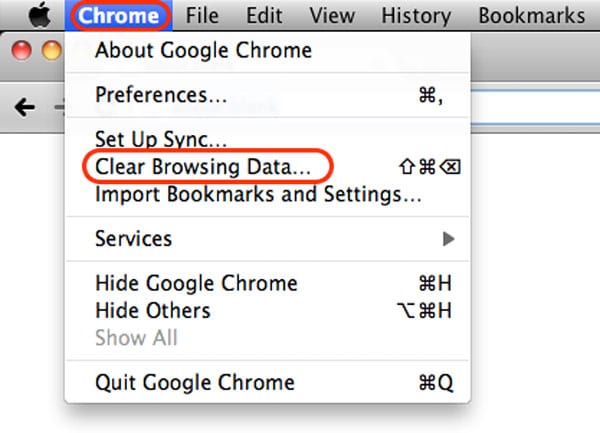 2. Check the following: - Browser history - Cookies and other site…"
url: "https://servingalcohol.com/kb/cache/clear-chrome-mac/"
updated: "2025-03-24"
category: Clear Browsing Data
---
# Clear Cache in Chrome on macOS
This document explains clearing the cache and cookies in [Google Chrome](https://www.google.com/chrome/) on [Mac OSX](https://support.apple.com/en-us/HT201260).
1. 1. Click on **Chrome** > **Clear Browsing Data...**.
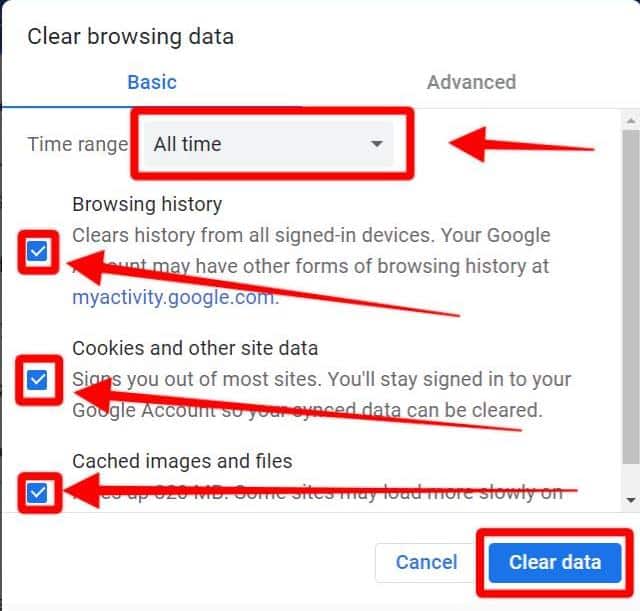
2. Check the following:
- Browser history
- Cookies and other site data
- Cached images and files
*** Be sure to select the optional time range: ****All time****
Select **All Time** in the **Time range** drop-down box. Do not check to clear your passwords; you'll want to keep those.
1. Click on the **CLEAR DATA** button.
[](https://servingalcohol.com/wp-content/uploads/2021/07/Chrome-browser-data-1.jpeg)
- After you clear your Internet cache, close your web browser.
- Next, open the [Google Chrome](https://www.google.com/chrome/) browser again.
- Log in to the course from our homepage at **[servingalcohol.com](https://servingalcohol.com/)**.
- Click the **[Sign In](https://servingalcohol.com/ecomm/#/login)** button at the top of the page.
- Enter your email address and password. If you used the Google Login with your [Gmail](https://mail.google.com/mail/u/0/#inbox), use that instead.
- After logging in, click on the name of the course in red.
- On the next page, click on the **Enter** button.
- Select the **Last Visited Page** button.
[](https://servingalcohol.com/ecomm/#/login)